

We’re making it easier to access help and support with WordPress, by bringing back the LiveChat function in WordPress Admin.
Table of Contents
This has been added to most sites via a branded Child Theme – currently for sites using Divi, Astra or Impreza. Child Themes allows customisation to be added to a site without affecting official theme updates, and we have either added our own branded Child Theme to sites or updated existing ones to push this functionality out, as well as simplifying the layout of the Dashboard by removing unnecessary elements. There is also a new box on the Dashboard with our details and a link to managing Hosting accounts.
 To make it even easier to provide support using the LiveChat function, we will be able to see what page you are on, your WordPress username and associated email address.
The chat box will look similar to the image here, but if it is covering essential elements on your screen or you want a larger view of the chat, there is an option to pop out widget under the menu bars in the top right. You can also request an email copy of the conversation if necessary.
There is an option under the menu bars to set your name if you want to.
Hiding LiveChat
One of the problems we have experienced with LiveChat in the past is that the chat bubble/icons sometimes covered important buttons on the page itself. This had previously made it difficult to update Services in our scheduling tool, and required skillful mouse control to add images in some cases. It’s the main reason that the service was removed from sites, but we have added some controls to completely hide the LiveChat tool if it does cause you any problems.
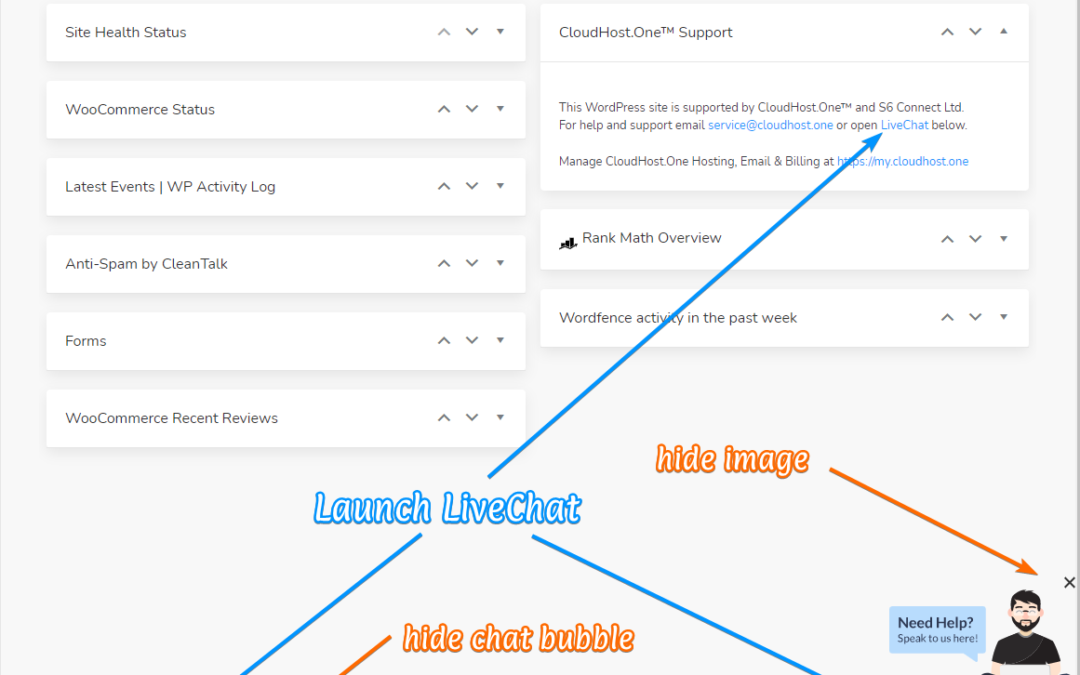
Usually you would just see an orange bar in the lower right of the screen. This may say LiveChat Support or Message Support, depending on whether anyone is available or not. You may also sometimes see an additional image or text above this bar at times. This can be hidden by hovering over it and clicking the X that appears to the right, as indicated below.
We have also added a control in the page footer to completely hide the chat bar or bubble. Clicking on [Show/Hide] at the bottom of any page in the WordPress Admin area will toggle the display on or off.
We’ve also highlighted the options for opening the LiveChat fully if required. Click one the LiveChat link, the [Open/Close] toggle link or simply on the chat bar or bubble itself. These links will not work when the chat is hidden though.

This LiveChat function will connect you directly to us, subject to availability of course. If no one is available you will be able to leave a message, which will be followed up via email – service@cloudhost.one
Future Improvements
Currently the LiveChat is only available on sites using Divi, Astra or Impreza. A Child Theme for Weaver will be added this week, which is the theme used by most of the former Harvest Consulting clients.
We’ll be making further improvements to the LiveChat service over the coming weeks, and hope to enable instant screen-sharing for troubleshooting on Managed WordPress accounts (CloudHost Connect Pro). The LiveChat functionality will be added to our other sites – S6 Connect, CloudHost.One, Harvest Consulting – as well as to other account management areas, including my.cloudhost.one and cloudhost.email service pages and system pages that may be reached if there is a configuration error, so that problems can be resolved.
As always, we’d welcome your feedback on the service, and look forward to helping you soon!